Website Backups on a Budget: The 3-2-1 Strategy
Three copies, two platforms, one off-site, plus an immutable copy and a tested restore. How small businesses and WordPress owners build real backup protection without an enterprise budget, and how to keep rankings intact when they need it.
- The 3-2-1 rule means three copies, on two different platforms, with one off-site; the 3-2-1-1-0 upgrade adds an immutable or offline copy and a clean restore test.
- Host backups are a useful first layer but share the same account, infrastructure and retention limits as your live site, so they cannot be the only copy.
- A budget setup combines host snapshots, a plugin sending encrypted archives to separate S3-compatible storage, and an object-lock bucket or offline download.
- Separate credentials and least-privilege keys matter as much as the copies themselves, because ransomware and account takeover target backups first.
- Drill a restore to staging every quarter, measure RTO and RPO, and run an SEO checklist (noindex, robots.txt, redirects, sitemap, HTTPS) before going live.
The 3-2-1 backup strategy means keeping three copies of your website, on two different types of storage, with one copy held off-site. On a small-business budget you can meet it with your host’s snapshots, a backup plugin that ships copies to separate object storage, and a periodic immutable or offline copy that no compromised login can delete.
What the 3-2-1 rule actually requires, and the 3-2-1-1-0 upgrade
The 3-2-1 rule requires three copies of your data (the live site plus two backups), stored on at least two different media or platforms, with at least one copy physically and administratively outside the place the live site runs. The modern 3-2-1-1-0 version adds one copy that is immutable or offline, and zero errors when you test a restore.
Each number exists to defeat a specific failure. Three copies protect you against a single corrupted backup, such as an archive that timed out halfway or a database dump that silently skipped a table. Two media types protect you against a flaw shared by one platform, such as a bug in the host’s snapshot system or a billing lapse that suspends a whole account. One off-site copy protects you against the event that takes the server and everything attached to it: a data center incident, a suspended hosting account or a provider that simply closes.
The extra “1” answers ransomware and account takeover: anyone holding credentials that reach your backups can delete them before they encrypt or deface the site. A copy with object lock, versioning that cannot be switched off, or a download sitting on a drive that is not connected to anything survives that scenario. The “0” is the discipline most budgets skip: a backup you have never restored is a hypothesis, not a safety net.
- 3 copies: the live site, a primary backup and a secondary backup.
- 2 media or platforms: for example, your host’s snapshot system and a separate object storage provider.
- 1 off-site: stored with a different company, under a different account, in a different location.
- 1 immutable or offline: a copy nobody can alter or delete within its retention window, including you.
- 0 errors: a restore test that finishes cleanly and produces a working site.
Why your host’s backups are not a backup strategy
Host-provided backups are useful as copy one, but they fail as a complete strategy because they live with the same company, often on the same infrastructure, and behind the same account login as your live site. Anything that takes down the account, whether a billing dispute, a compromised password or the host shutting down, can take the backups with it.
When we audit small-business sites after an incident, the same assumptions come up again and again. The owner believed the plan “included daily backups” without checking retention, database coverage or restore fees. Budget plans often keep a short rolling window, so a problem noticed weeks later has already been overwritten in every copy.
There are four structural weaknesses to plan around:
- Shared blast radius. Snapshots stored in the same data center or on the same storage cluster fail with the server they protect.
- Shared credentials. Whoever logs into your hosting panel can usually delete, restore over or download your backups; a phished password compromises both the site and its safety net.
- Retention you do not control. The host decides how many versions exist and when they expire, and terms of service often describe backups as a courtesy rather than a guarantee.
- Provider risk. Hosts get acquired, change plans, suspend accounts over disputes, or close. If your only copies are inside their system, your continuity depends on their continuity.
None of this means host backups are worthless. They are usually the fastest restore path for everyday mistakes such as a bad plugin update; they are simply the layer most likely to disappear at the same moment your site does. If you are still choosing a provider, our guide to choosing cheap hosting that stays reliable explains which backup terms to read before you sign up, including retention length, restore fees and whether you can download archives yourself.
What a failed restore costs you in search
A failed or slow restore costs you search visibility in proportion to how long visitors and Googlebot see errors instead of pages. Short outages are usually forgiven, but extended server errors lead Google to crawl less and eventually drop URLs, and a restore that brings back an old or partial version of the site creates 404s, missing content and broken signals that take longer to recover than the outage itself.
Google Search Central’s documentation on HTTP status codes and network errors describes the mechanics plainly: persistent 5xx responses cause Googlebot to slow its crawl rate, and URLs that keep returning server errors are eventually removed from the index, while pages that return 404 are dropped as they are recrawled. We cover the revenue and ranking side of those mechanics in detail in our analysis of what downtime really costs in SEO; the backup-specific risk is that a botched recovery extends the error window from hours to days.
The quieter damage comes from restoring the wrong thing. A backup that is three weeks old silently deletes every post, product and page edit made since, and each of those URLs becomes a 404 in Search Console. A files-only or database-only restore brings back broken templates or missing images. And a restore from a staging copy can arrive with a site-wide noindex setting or a blocking robots.txt, which removes the whole site from results far faster than any outage would.
| Failure scenario | What search engines see | Typical recovery path |
|---|---|---|
| Extended outage while you search for a usable backup | Repeated 5xx errors, slower crawling | Fast once the site returns, if the outage was short |
| Restore from an outdated backup | 404s for every URL created since the backup | Rebuild or redirect missing pages, resubmit sitemap |
| Partial restore (files or database only) | Broken templates, missing images, thin pages | Second restore from a matching pair |
| Restore of a staging copy | Noindex tags or a blocking robots.txt site-wide | Remove the flags, request recrawl of key pages |
Every row is avoidable with two habits: backups frequent enough that the newest good copy is recent, and a tested restore that ends with an SEO check.
A budget 3-2-1 architecture for small business sites
The most cost-effective 3-2-1 setup for a small business or WordPress site combines three layers: your host’s automatic snapshots as copy one, a backup plugin or script sending scheduled archives to a separate S3-compatible object storage account as copy two, and a periodic immutable or offline copy as copy three. Most sites can run all three for a modest monthly outlay.
Copy one costs nothing extra on many plans, which is why it is worth keeping even though it is not enough alone. If you are comparing budget providers, our shortlist of the best cheap web hosting plans with backups included flags which hosts offer daily snapshots, self-service restores and downloadable archives, the three features that make a host layer genuinely useful. Copy two is a reputable backup plugin, or a server-side script, pushing encrypted archives to object storage from a different company: a major cloud provider, a low-cost S3-compatible specialist or storage bundled with a plugin subscription, all priced by volume stored. Copy three is an object-lock bucket or a local download you disconnect afterward.
| Backup tier | Protects against | Monthly effort | Approximate cost band |
|---|---|---|---|
| Host snapshots | Bad updates, accidental edits, quick rollbacks | None once enabled | Often included in the plan |
| Plugin to off-site object storage | Server failure, host closure, account suspension | Check reports weekly | Low: pay per volume stored |
| Immutable bucket (object lock) | Ransomware, credential theft, malicious deletion | Review retention quarterly | Low to moderate: extra retained versions |
| Offline local download | Total cloud-account loss, long-term archive | Download and disconnect monthly | One-off drive purchase |
| Managed backup service | Most of the above, with support | Minimal | Moderate to high: subscription |
- 1Confirm what your host already doesNote snapshot frequency, retention, database coverage and whether you can restore and download without a support ticket.
- 2Create a separate storage accountOpen object storage with a different provider, a different email address, a unique password and two-factor authentication.
- 3Create a least-privilege access keyGenerate a key that can write to one bucket only and cannot delete objects or change bucket settings. This is the key your backup plugin will use.
- 4Configure the backup pluginSchedule database and files separately, enable encryption, point both jobs at the bucket and exclude cache and temporary folders.
- 5Add the immutable layerTurn on versioning and object lock for a retention window longer than the time an intrusion might go unnoticed, or set a monthly calendar reminder for a local download.
- 6Run your first restoreRestore the newest archive to a staging subdomain the same afternoon, before you rely on any of it.
What to back up, how often, and how long to keep it
Back up the database and the files as separate jobs, because they change at different speeds: the database changes with every order, comment and edit, while themes, plugins and media change far less often. Match frequency to how much work you could afford to lose, and keep daily, weekly and monthly copies on a rolling schedule so older versions exist when a problem surfaces late.
The question that sets your frequency is your recovery point objective, or RPO: how much data can you lose without real harm? For a brochure site that changes a few times a month, a weekly full backup with a database backup after each content update is usually enough. An active blog suits daily database and weekly file backups. For an online store, lost orders are lost revenue, so back up files daily and the database hourly or near-continuously. Incremental backups, which store only what changed, keep that affordable; add a periodic full backup so a restore never depends on a long chain.
Retention is where the grandfather-father-son (GFS) pattern earns its place. Keep a week of daily copies, a month or two of weekly copies and several months of monthly copies. A problem discovered six weeks late still has a clean version to roll back to.
WordPress specifics
The official WordPress documentation on backups is clear that a complete backup covers both the database and the site files, and in practice that means paying attention to three areas:
- wp-content/uploads: usually the largest folder; check its size before choosing a storage plan.
- Database bloat: post revisions, expired transients, spam comments and logging tables can inflate the dump. Clean them on a schedule.
- Exclusions: skip cache directories, other backup plugins’ folders and temporary files. Backing up a cache wastes storage, and backing up old backups makes every archive grow on itself.
Also keep copies of wp-config.php and server rules such as .htaccess; without them, a restore onto a fresh server often fails at the last step.
Securing the backups themselves: encryption, credentials and ransomware
Your backups contain everything an attacker wants: customer records, password hashes, configuration secrets and a complete copy of the site. Encrypt them at rest, keep them in an account separate from your hosting, and give the backup process only the permissions it needs to write, never to delete, so a compromise of the website cannot become a compromise of its recovery.
Encryption is the easy part. Most backup plugins can encrypt archives before upload, and most object storage providers encrypt stored data by default; use both, and keep the plugin’s encryption passphrase in a password manager that is not stored on the web server. Otherwise a server loss takes the key with it.
Credential hygiene is where small businesses are most exposed. The pattern we look for in audits is simple: can one password reach both the live site and every backup? If the hosting login, the storage login and the email address used to reset both are the same, the answer is yes, and a single phishing email could remove every copy you own. Separate the accounts, turn on two-factor authentication, and review quarterly who still has access; former contractors often keep it.
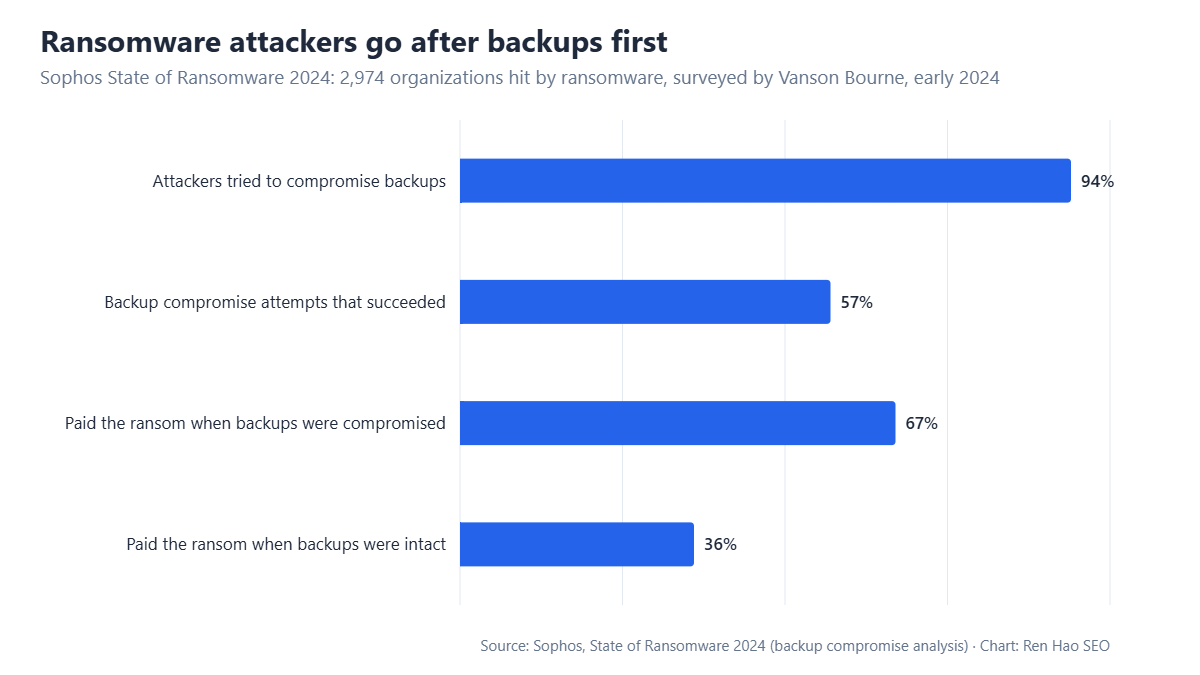
Modern ransomware attacks look for and destroy backups before encrypting anything else: in Sophos’s 2024 survey of 2,974 organizations hit by ransomware, 94% saw an attempt on their backups and 57% of those attempts succeeded, and victims with compromised backups paid the ransom nearly twice as often. That is why CISA’s #StopRansomware guidance recommends maintaining offline, encrypted backups and testing them regularly. For a website, the practical equivalent is an object-lock bucket or an unplugged drive: a copy that the credentials stolen from your site cannot reach or delete. If every backup you have can be erased from one dashboard, you do not yet have a ransomware-resistant backup.
Least-privilege keys finish the picture. The access key your backup plugin uses should be able to add objects to one bucket and nothing more: no delete rights, no permission to change retention or lock settings, and no access to other buckets. A stolen key then lets an attacker upload junk, nothing more.
The restore drill and the post-restore SEO checklist
A restore drill is a scheduled rehearsal in which you restore a recent backup to a staging URL, time it, and confirm the result works. Run one every quarter and after any major change to your hosting or backup setup. The drill turns the “0 errors” in 3-2-1-1-0 from an aspiration into a measured fact, and it produces the runbook you will follow under pressure.
Measure two numbers each time. The recovery time objective, or RTO, is how long it takes from “the site is down” to “the site is back”; the drill tells you whether that is thirty minutes or a full day. The recovery point you actually achieve is the age of the newest usable backup; if it is older than your RPO target, your schedule needs to change. Record both, with every step and login location, in a one-page runbook you can reach when the site and its email are down.
The same procedure doubles as migration insurance. Moving hosts is a planned restore onto new infrastructure, and our step-by-step guide to migrating web hosts without losing SEO uses exactly this discipline: a verified backup, a staging restore, and a checklist before DNS changes.
Before you declare any restore finished, check the settings that decide whether search engines can see and trust the recovered site:
- ✓Indexing flagsConfirm “Discourage search engines” is off in WordPress and no page templates carry a stray noindex meta tag or header.
- ✓robots.txtCompare it with the live version from before the incident; a staging robots.txt that blocks everything is a common restore error.
- ✓Permalinks and redirectsRe-save permalink settings, spot-check old URLs and confirm your redirect rules and redirect plugin data came back intact.
- ✓XML sitemapLoad the sitemap, check that it lists current URLs, and resubmit it in Search Console if the outage was long.
- ✓HTTPS and canonicalsVerify the certificate, that every page loads over HTTPS without mixed content, and that canonical tags point to the live domain, not staging.
- ✓Search Console follow-upWatch the Pages report and crawl stats for the next two weeks and fix any new 404 or server-error clusters quickly.
Run the full checklist during every drill, so you discover a crawler-blocking staging copy on a quiet Tuesday, not on the day your store is offline.
Sophos: State of Ransomware 2024, the impact of compromised backups. CISA: #StopRansomware guidance on offline, encrypted and tested backups. WordPress.org: WordPress backups documentation. Google Search Central: how HTTP status codes and network errors affect Google Search.